
Count products
1. In the left panel go to Inventory and select New Stock Count
2. Select Count all products, then Start stock count
Pro Tip:
Counting by location and tag is currently disabled, as it requires a different type of license. If you’d like to unlock this feature, please reach out to us at support@muzzbuzz.com.au.
Counting Stock and Saving Progress
1. Create a Stock Count
2. Enter the counted quantity individually or by the purchased format
3. Select Save, next item to move to the next item
Pro Tip:
If you don't want to count an item, be sure to select Don't count this item so a quantity of 0 is not recorded.
4. If you need to stop counting stock select Back, then Save.
Pro Tip:
This will only be saved on the device you are counting on.
Also be aware that clicking 'Don't save' will delete the current stock count, even if previously saved.
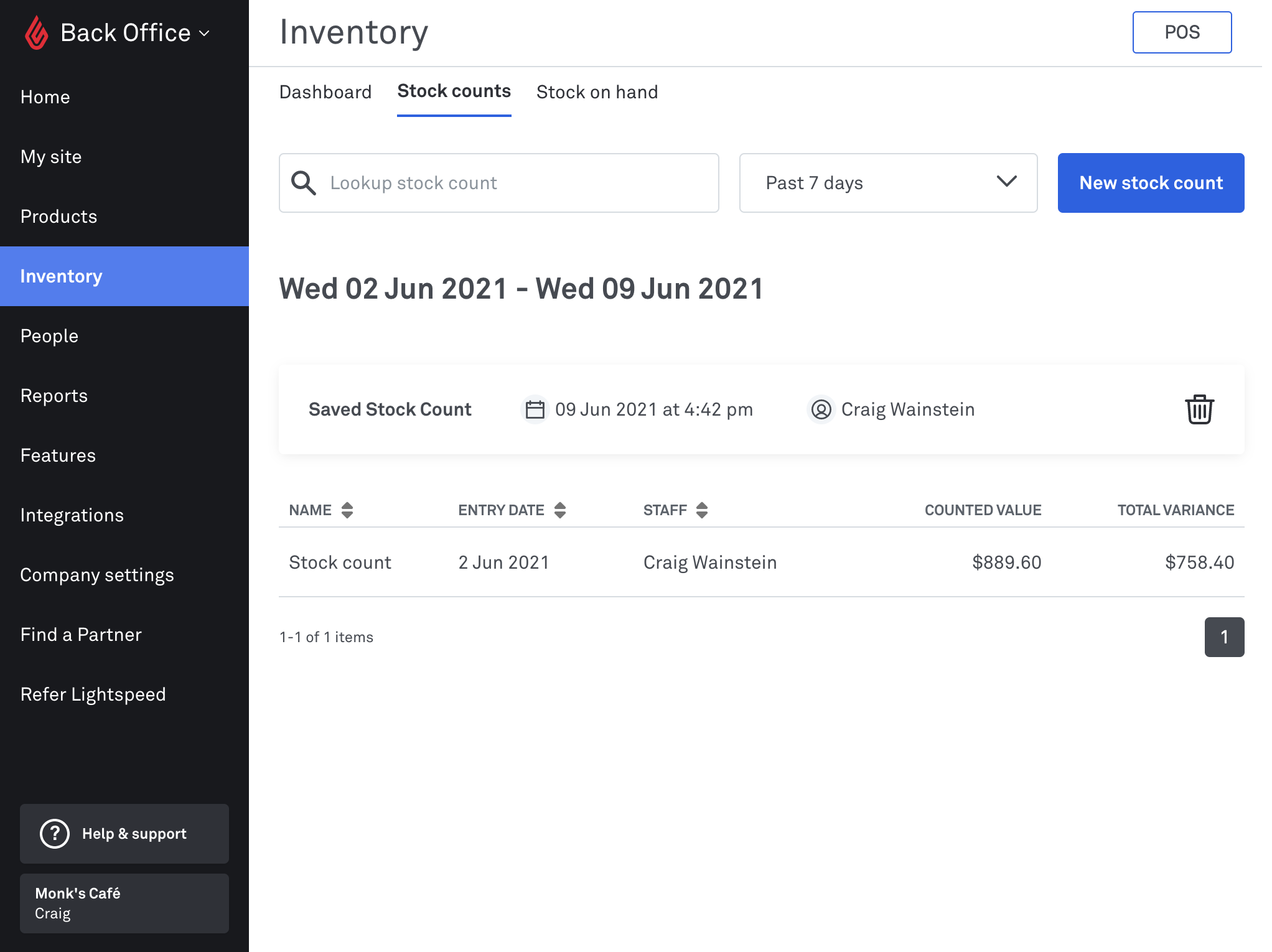
5. When ready, you can return to your saved stock count by selecting it here
Reviewing, recounting and submitting a stock count
When you have finished counting, it's important to review your variances to make sure you haven't missed anything.
1. Select Review stock count
2. From the review page page you can see your Total variance, Total cost variance and Total Stock value
3. If you notice a variance and would like to recount an item, select Recount to see all the locations that item can be found. Add any missed items then select Apply change
4. When ready select Submit stock count
Comments
0 comments
Please sign in to leave a comment.